


Trackpad
Tap to click. Scroll with two fingers or the strip. Hold, then move, to drag.
Mac · Windows · Linux · TV — Free
Trackpad, air mouse, keyboard and remote — for your Mac, PC, Linux and your TV. No account, no cloud.
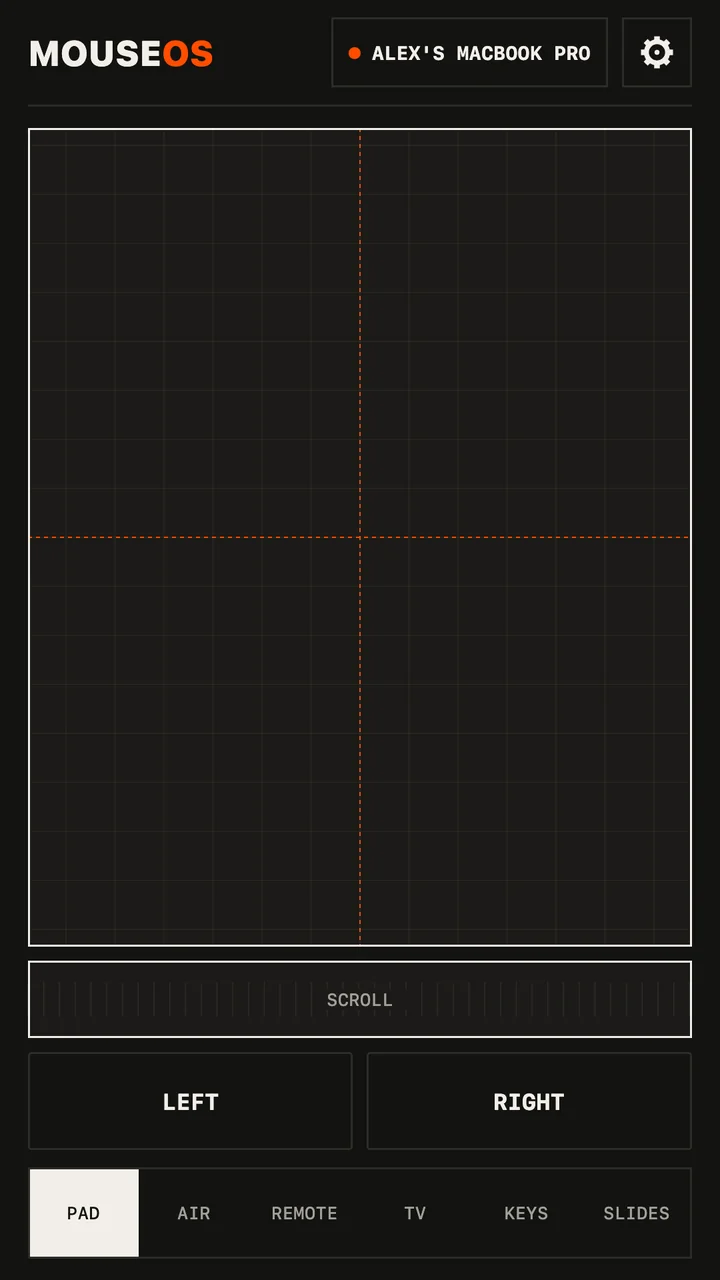
Move your mouse —Drag across the grid — that's your phone driving your computer.
Works with
In short
MouseOS is a free app that turns your Android phone into a wireless trackpad, air mouse, keyboard, media remote and presentation clicker for your Mac, Windows PC or Linux computer — and into a remote for your Samsung, LG or Google TV.
The phone and the computer talk directly over your Wi‑Fi. No internet needed, no account, no cloud, no ads, no tracking. The computer runs a free companion app; TVs need nothing at all. Every new phone is approved once, with one ALLOW click on the computer.
Platforms
One phone app drives your computer and your TV. The computer app is free for Mac, Windows and Linux.
Apple silicon · macOS 11+
Download .dmg →Windows 10 & 11 · 64‑bit
Download .msi →Ubuntu, Fedora & co · X11 or Wayland
.deb →.rpm →Samsung · LG · Google TV
Straight from the phoneAndroid 8+
Google Play →On the way
SoonInstall
Start on your computer, finish on your phone. Keep both on the same Wi‑Fi.
On your Mac
Drag MouseOS into Applications and open it. If macOS stops it the first time: System Settings → Privacy & Security → Open Anyway.
On your Mac
Click ALLOW CONTROL, then switch MouseOS on. macOS asks once before any app can move the pointer.
On your phone
Install MouseOS on your Android phone and open it on the same Wi‑Fi. It finds your Mac by itself.
Back on your Mac
Your Mac asks once for each new phone. That's it — your phone is the mouse.
On your PC
Open the installer — no admin rights needed. If Windows says it protected your PC: More info → Run anyway. Only the first time.
On your PC
The first time MouseOS opens, Windows asks about network access: click Allow. Your Wi‑Fi must be a Private network.
On your phone
Install MouseOS on your Android phone and open it on the same Wi‑Fi. It finds your computer by itself.
Back on your PC
Your PC asks once for each new phone. That's it — your phone is the mouse.
On your computer
Ubuntu, Debian, Mint: the .deb. Fedora, openSUSE: the .rpm. Your software center opens it — or sudo apt install ./mouseos_*.deb.
On your computer
On Wayland, click ALLOW CONTROL and type your password once. On X11 there's nothing to do.
On your phone
Install MouseOS on your Android phone and open it on the same Wi‑Fi. It finds your computer by itself.
Back on your computer
Your computer asks once for each new phone. That's it — your phone is the mouse.
Stuck? Quick fixes →
Six screens
Tap to click. Scroll with two fingers or the strip. Hold, then move, to drag.
Aim the phone like a TV remote. Hold to point, tap to click, scroll on the strip.
Arrows, play, the computer's volume, next episode.
Your Samsung, LG or Google TV. No computer needed.
Type in any language. Accents and emoji included.
Giant next and previous. A timer you set to the minute. Volume buttons click.
Yes — the phone app and the computer app. No ads. There's an optional tip in Settings if you want to say thanks.
Mac with Apple silicon (M1 and later), macOS 11 or later. Windows 10 and 11, 64‑bit. Linux, 64‑bit — Ubuntu, Debian, Fedora and friends, on X11 or Wayland.
Android first. iPhone is on the way.
Samsung, LG and Google TV (Sony, TCL, Philips…).
No. Your phone and your computer talk directly over your Wi‑Fi — nothing goes through a server. No internet, no account. Your phone's hotspot works too.
Wi‑Fi, not Bluetooth. MouseOS finds your computer on the local network by itself; you click ALLOW on the computer once, and that's the pairing.
No. The TV screen talks to your Samsung, LG or Google TV directly, over the same Wi‑Fi.
Yes. The Slides screen has a giant next and previous, a timer you set to the minute, and the phone's volume buttons click too.
Yes. Keys types in any language, accents and emoji included. Remote has the arrows, play, the computer's volume and next episode.
No. Every new phone needs one ALLOW click on the computer.
System Settings → Privacy & Security, scroll down, click Open Anyway. Only the first time.
Click More info, then Run anyway. Only the first time: MouseOS isn't signed by Microsoft yet.
Same Wi‑Fi, VPN off. Café or hotel Wi‑Fi hides devices: turn on your phone's hotspot and join it from the computer. On Windows, your Wi‑Fi must be a Private network. Or tap TYPE THE ADDRESS on the phone.
Mac: System Settings → Privacy & Security → Accessibility: switch MouseOS on. Linux on Wayland: open MouseOS and click ALLOW CONTROL. After an update, the app shows you how.